 Voxpon
How to translate a YouTube video in real time
You found the exact video you needed. A tutorial, a lecture, an interview, a news clip. It's in a language you don't speak, and there are no English subtitles. Now what?
There are two real answers, and which one you need depends on a single question: does the video already have captions? Start there.
Method 1: YouTube's built-in auto-translate (if the video has captions)
YouTube can translate its own captions into 100+ languages for free. This is the easiest route when it works.
On desktop:
- Play the video and click the CC button to turn on captions.
- Click the gear icon, then Subtitles/CC.
- Click Auto-translate and pick your language.
On the mobile app it's the same idea: tap CC or the settings gear, then Captions → Auto-translate, then your language.
Here's the catch, and it's a big one. Auto-translate only has something to translate if the video already has captions, either uploaded by the creator or auto-generated by YouTube. Plenty of videos have neither. When there are no captions, the Auto-translate option simply isn't there, and this whole method is a dead end. Live streams are worse: by YouTube's own documentation, automatic captions for live streams are available in English only, so a live stream in another language gives you nothing to translate.
Quality is the other thing to watch. You're translating a machine transcript with a machine translator, so errors in the captions carry straight through. For clearly-spoken content it's fine. For anything with heavy accents, background noise, or technical terms, expect rough patches.
Method 2: Translate the audio directly (works even with no captions)
When the video has no captions, or the built-in translation is too rough, you translate what the video is actually saying instead of what YouTube thinks it said. This means capturing the tab's audio and translating that.
Translate Audio does this in the browser. It listens to the sound coming out of the tab, turns it into text, and translates it live while the video plays. No captions required, because it's working from the audio itself.
- Open the YouTube video in one tab.
- Open Translate Audio in another tab.
- Switch the capture mode to Tab audio.
- Pick the language you want to read.
- Hit start. In the share popup, choose the YouTube tab and make sure "Share tab audio" is checked. That checkbox is the whole trick, and it's easy to miss.
- Play the video. Translated text streams in as it talks.
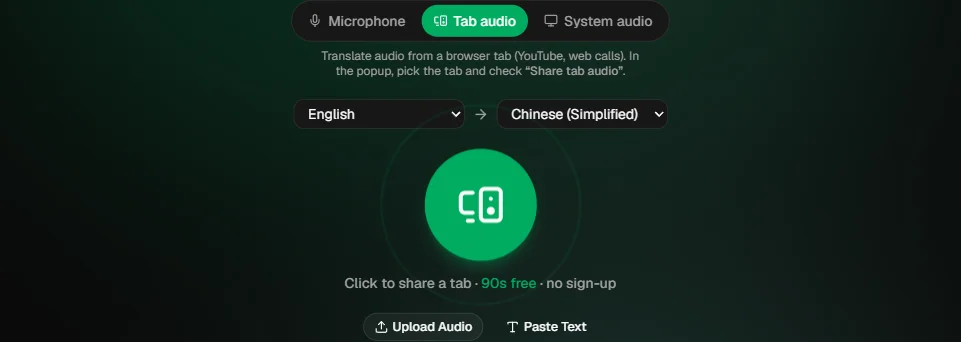
Tab audio mode in Translate Audio. Pick the tab, check "Share tab audio," and it reads the sound the video is playing.
It's free, runs in the browser, and there's nothing to install. Because it reads the live audio, it handles the cases the built-in captions can't: no-caption videos, non-English live streams, and languages YouTube doesn't auto-caption well.
Which method should you use?
Use YouTube's built-in auto-translate first. It's one click and it's right there. If the video has clean captions in the original language, it'll do the job.
Reach for audio translation when the built-in route fails: no captions, a live stream in another language, or captions so garbled that the translation is useless. That's exactly the gap it fills.
Tips for a cleaner result
- One video at a time. Tab capture grabs the audio from the tab you pick. Mute other noisy tabs so they don't bleed in.
- Keep the video tab open. Minimizing is fine, but closing the tab or ending the share stops the capture.
- Give it a second. There's a small delay between speech and translation. That's the transcription and translation happening, not a freeze.
- Clear audio helps most. A well-recorded talk translates far better than a noisy phone video. Same as it would for a human listener.
Quick answers
Can I translate a YouTube video that has no subtitles? Yes. YouTube's own auto-translate needs existing captions, but a tool that reads the tab's audio works with no captions at all.
Do I need to download anything? No. This runs in the browser. Open the video, open the translator, share the tab.
Does it work for live streams? Yes. Since it translates the audio as it plays, a live stream in another language works the same as a recorded video, which is where YouTube's English-only live captions leave you stuck.
Is it free? Yes, both methods are free.
Grab a video in a language you don't speak and try it. The fastest way to know if reading along works for you is to watch something you'd otherwise have skipped.
Sources
- YouTube Help, Use automatic captions — supported languages and the English-only limit on live-stream captions.